Assessment
Candidate Assessment Guide: How to Join and Complete Your Test
What Is a Candidate Assessment? A candidate assessment is an evaluation that helps an employer understand how well an applicant’s skills and knowledge match a role. Depending on the hiring process, it may include technical questions, role-specific tasks, or other skills-based questions. If you have been invited to complete an assessment through SkillBrew.AI, this guide explains how to access it, check your setup, answer the questions, and confirm that you have finished. The exact questions,

What Is a Candidate Assessment?
A candidate assessment is an evaluation that helps an employer understand how well an applicant’s skills and knowledge match a role. Depending on the hiring process, it may include technical questions, role-specific tasks, or other skills-based questions. If you have been invited to complete an assessment through SkillBrew.AI, this guide explains how to access it, check your setup, answer the questions, and confirm that you have finished.
The exact questions, duration, access window, and monitoring requirements depend on the assessment assigned to you. Read the invitation carefully and follow the instructions shown on your screen.
Before You Start: Check Your Assessment Email
SkillBrew.AI may send you three assessment-related emails: an invitation email, a registration or enrollment confirmation, and a completion email. Each one has a different purpose.
1. Assessment invitation email
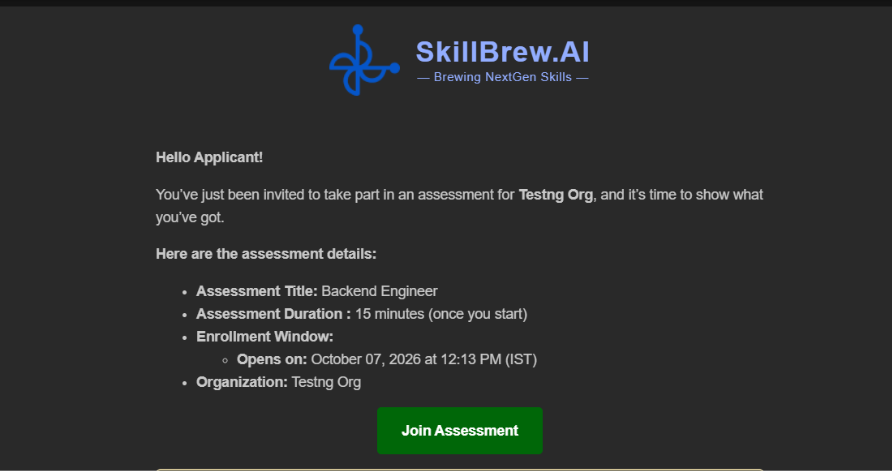
The invitation lets you know that an organisation has invited you to take an assessment. It includes key details such as the assessment title, duration, enrollment window, and organisation. Use the Join Assessment button in the email to open the assessment. If the email says the link is tied to a specific email address, sign in or register with that same address.
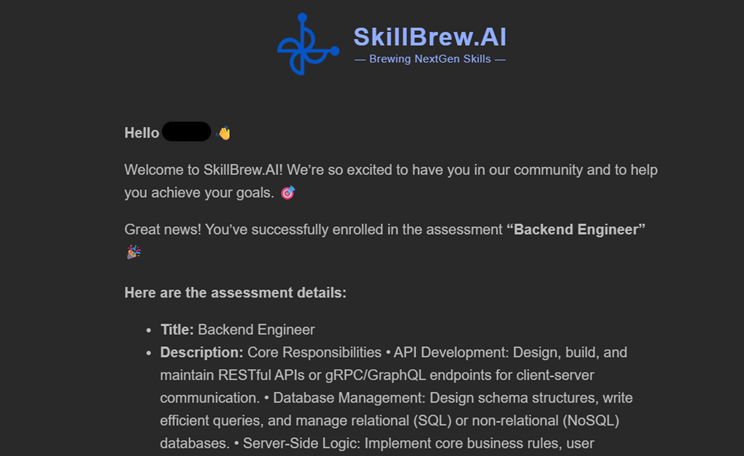
2. Registration or enrollment confirmation email
After you have enrolled, you may receive a confirmation email. It confirms that you are enrolled in the assessment and may repeat the assessment title and other details. Keep this email for reference. Enrollment confirmation does not necessarily mean that you have completed the assessment; you still need to open and submit the assessment within the allowed window.
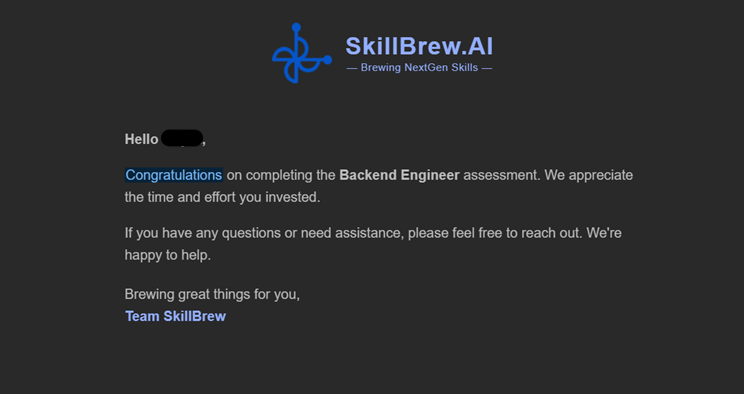
3. Assessment completion email
Once you have completed the assessment, you may receive a completion email thanking you for your time. This message confirms that the assessment has been completed. If you do not receive it, check your inbox and spam folder, then return to the assessment dashboard to check the status or contact support.
How to Join a Candidate Assessment
You can generally open your assigned assessment in one of three ways. Choose whichever route is available to you.
Option 1: Join from your email
Open the assessment invitation email and select Join Assessment. Follow the on-screen instructions to sign in or register using the email address associated with the invitation. If the assessment is not available yet, check the enrollment window in the email.
Option 2: Join from a dashboard notification
Sign in to SkillBrew.AI and check your notifications. If an assessment invitation or reminder appears there, open it to view the assessment details and continue.
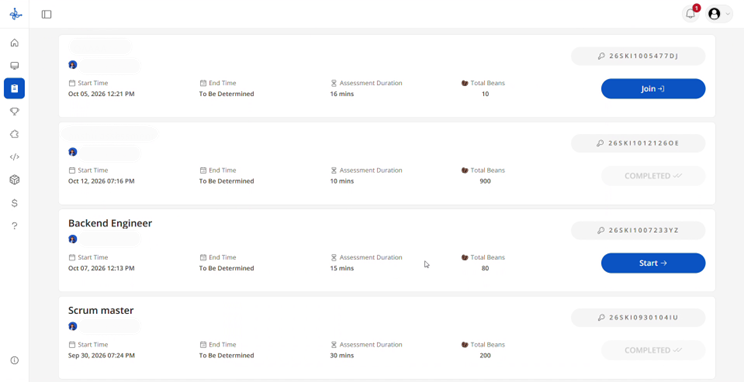
Option 3: Join from the assessment dashboard
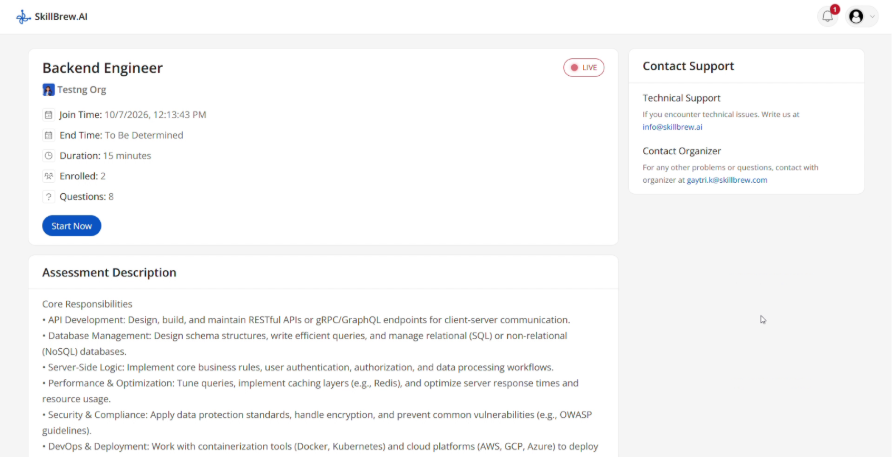
Sign in to SkillBrew.AI and navigate to the assessment dashboard. Find the assigned assessment, review its details, and select the available action to start or continue. Check the assessment title so you open the correct test.
Proctored vs. Unproctored Assessments
SkillBrew.AI assessments may be proctored or unproctored. The requirements you see before starting depend on the assessment configuration. Review the instructions on screen before you begin.
Proctored assessment
A proctored assessment includes checks designed to verify that your device and testing environment are ready for the assessment’s monitoring requirements. Before entering the assessment room, you may be asked to check or allow access to your camera, microphone, screen sharing, speaker output, and internet connection. You may also need to acknowledge the consent notice explaining how camera, microphone, and screen data are used for evaluation and monitoring. Read the privacy information shown on the page before giving consent.
Complete the setup checks one by one:
- Camera: allow access and confirm that the camera is detected.
- Internet: run the connection test and make sure your connection is stable.
- Screen: when prompted, select the entire screen if that is what the setup instructions request.
- Microphone: select the correct microphone and speak when prompted to test it.
- Speaker: choose the correct output device and play the test sound; raise the volume so you can hear it.
- Consent: review the notice and select Allow only if you agree to the stated recording and monitoring terms.
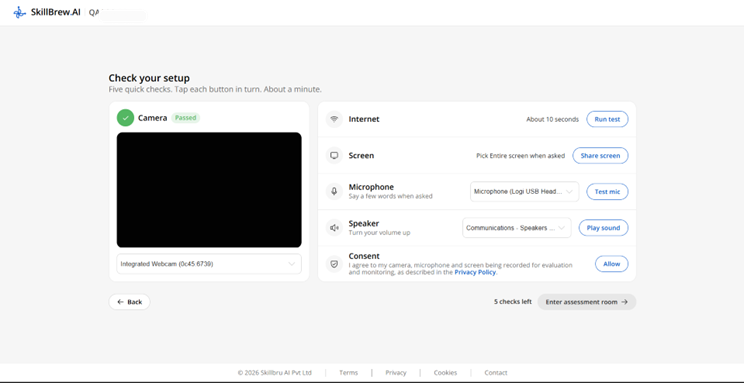
If a check fails, use the device selector to choose the correct camera, microphone, or speaker. Check browser permissions and close other apps that may be using the device. For screen sharing, follow the browser prompt carefully. If the internet test fails, reconnect to a stable network and run the test again. Do not proceed until the required checks are complete.
Unproctored assessment
An unproctored assessment does not use the same proctoring setup flow. You may not be asked to grant camera, microphone, or screen-sharing permissions. However, follow any instructions displayed before the assessment begins. A specific assessment may still have its own device, browser, or timing requirements.
How to Complete the Assessment
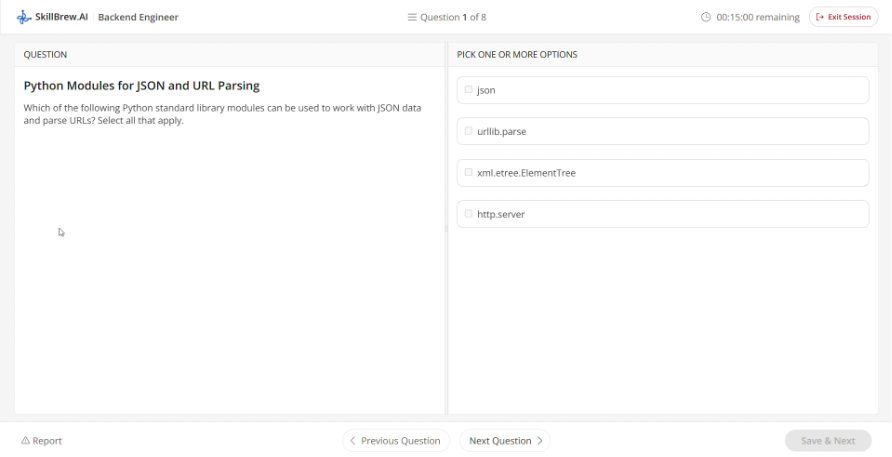
After you pass the required setup checks—or open an unproctored assessment—enter the assessment room and read the instructions before answering.
- Confirm the assessment title and review the instructions.
- Check the time limit and plan your time so you can attempt the questions without rushing.
- Read each question carefully and choose or enter your answer as requested.
- Use the navigation controls shown in the assessment to move between questions, where available.
- Before submitting, review your answers if the interface allows it.
- Select the final submit or finish action when you are ready, and wait for the confirmation screen.
How to Know Your Candidate Assessment Is Complete
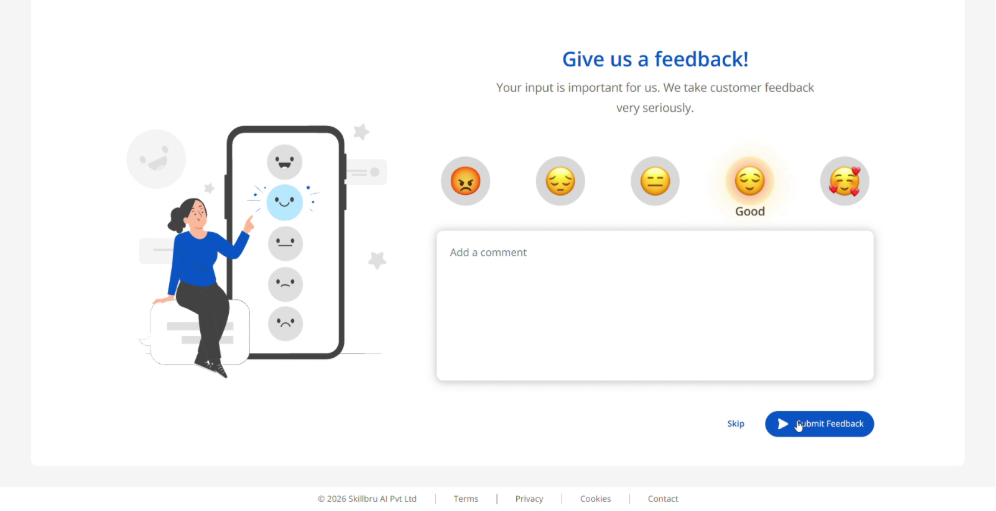
After submission, wait until the platform confirms that you have completed the assessment. Do not close the browser while the submission is processing. The completion screen may invite you to provide feedback. You can then close the assessment if the page says you are finished.
You may also receive a completion email. If the status is unclear, return to the assessment dashboard and check the assessment status. If it still appears incomplete, contact the organisation or support team and include the assessment title and the email address you used to access it.
Common Issues and How to Resolve Them
The assessment link does not open. Check that you are using the email address linked to the invitation. Try opening the link in an updated browser and confirm that the enrollment window is active.
I cannot find the assessment in my dashboard. Check notifications and the assessment dashboard, then confirm that you are signed in to the correct account. Review your invitation email for the access window.
My camera or microphone is not detected. Check browser permissions, confirm the correct device is selected, and close other apps that may be using it. Refresh the page and run the check again if needed.
The screen-sharing check does not pass. When the browser prompts you, choose the entire screen if instructed. Make sure you have not cancelled the screen-sharing prompt.
The internet test fails. Move to a stable network, pause large downloads or streaming, and rerun the test.
I submitted the assessment but did not receive a completion email. Check your spam folder and the dashboard status. If completion is still unclear, contact support or the organisation that invited you.
Candidate Assessment Checklist
☐ I have read the invitation and confirmed the assessment title and access window.
☐ I am signed in with the email address associated with the invitation.
☐ My device and internet connection are ready.
☐ I have completed the required setup checks for my assessment type.
☐ I have read the instructions and time limit before starting.
☐ I have submitted the assessment and seen the completion confirmation.
Frequently Asked Questions
Q1. How can I access my candidate assessment?
Use the Join Assessment button in your invitation email, open the assessment from a dashboard notification, or find it in the assessment dashboard after signing in.
Q2. What is the difference between a proctored and unproctored assessment?
A proctored assessment includes monitoring-related setup checks and may request camera, microphone, screen-sharing, speaker, and internet access. An unproctored assessment does not use the same proctoring setup flow. Always follow the instructions shown for your specific test.
Q3. Do I need to use the same email address that received the invitation?
If the invitation says the link is tied to a particular email address, you must register or sign in using that address.
Q4. How long do I have to complete the assessment?
The duration and enrollment window are shown in your invitation or assessment details. Check them before you begin. The time limit may start when you launch the assessment.
Q5. How do I know that my assessment was submitted?
Wait for the completion confirmation on screen. You may also receive a completion email, and you can check the status in the assessment dashboard.
Q6. What should I do if a setup check fails?
Confirm the correct device is selected, check browser permissions, test your internet connection, and retry. If the issue continues, contact support before starting.
Final Tips for a Smooth Assessment Experience
Open your invitation early, use the correct account, and check the assessment duration and access window before starting. For a proctored assessment, complete every required setup check and review the consent notice. During the test, follow the on-screen instructions and wait for the completion confirmation after submitting. These steps can help you complete your candidate assessment with fewer avoidable interruptions.
See AI-powered hiring in action
Discover how SkillBrew helps hiring teams cut time-to-hire by 60% with skill-validated assessments and AI-ranked shortlists.
Book a free demoNo commitment required · 30 minutes
Continue reading
View All Posts